Understanding the Difference Between SharePoint Forms and Microsoft Forms Link to heading
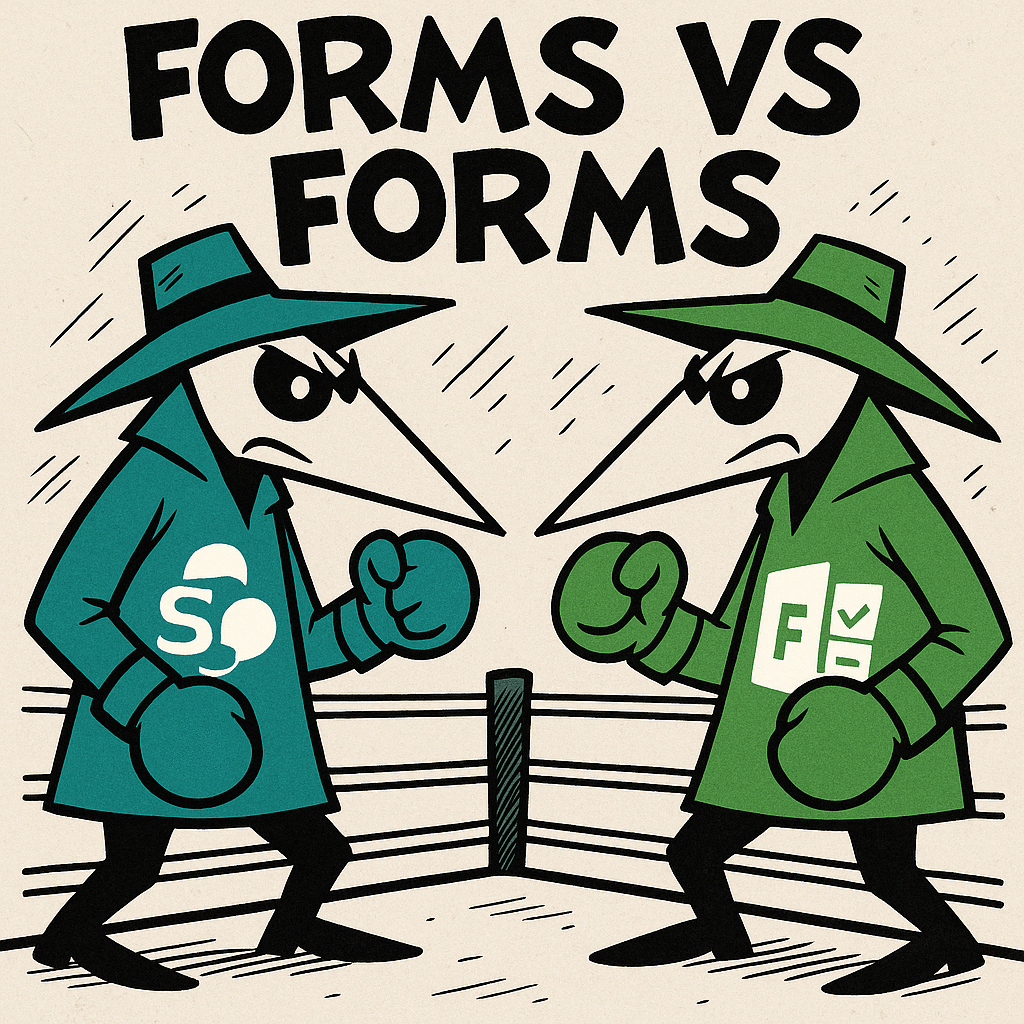
When it comes to collecting information or input from users in the Microsoft ecosystem, two popular tools often come up, SharePoint Forms and Microsoft Forms. Because both are used to gather responses, they are often confused with one another. In practice, though, they solve very different problems. Here’s a quick breakdown of the key differences to help you choose the right tool for your needs.
What Are Microsoft Forms? Link to heading
Microsoft Forms is a lightweight, easy-to-use app designed for quick data collection, such as surveys, quizzes, and polls. It allows users to create forms with simple drag-and-drop functionality and view results in real time.
Common Use Cases:
- Customer feedback surveys
- Employee engagement polls
- Event registrations
- Quizzes for training or education
Key Features:
- User-friendly interface
- Mobile-friendly forms
- Real-time results and analytics
- Easy integration with Excel and Microsoft Teams
What Are SharePoint Forms? Link to heading
SharePoint Forms are typically customized forms connected to SharePoint lists or libraries. These forms are often built using tools like Power Apps or InfoPath (older systems), allowing for more complex logic, automation, and integration with business processes.
Common Use Cases:
- Employee onboarding forms
- IT support request forms
- Expense reimbursement workflows
- Custom data entry linked to document libraries
Key Features:
- Deep integration with SharePoint lists
- Advanced customization with Power Apps
- Workflow automation via Power Automate
- Supports permissions, data validation, and logic
Key Differences at a Glance Link to heading
| Feature | Microsoft Forms | SharePoint Forms |
|---|---|---|
| Ease of Use | Very easy, no setup needed | Moderate to advanced (depending on build) |
| Customization | Basic (themes, question types) | Highly customizable (with Power Apps) |
| Integration | Integrates with Excel, Teams | Integrates with SharePoint, Power Automate |
| Best For | Surveys, quizzes, simple data input | Business processes, custom data collection |
| Automation | Limited | Advanced workflows possible |
Quick Decision Guide Link to heading
- Use Microsoft Forms if you need a survey, quiz, poll, or sign-up form that can be created and shared quickly.
- Use Microsoft Forms if you want a simpler experience for casual users and do not need complex back-end logic.
- Use SharePoint Forms if the responses need to live in a SharePoint list and become part of an ongoing process.
- Use SharePoint Forms if you need approvals, role-based visibility, custom validation, or deeper automation with Power Automate.
When to Use Each Link to heading
- Use Microsoft Forms when you need something fast, simple, and user-friendly for basic data collection.
- Use SharePoint Forms when your form needs to be part of a business process, includes conditional logic, or needs to store data in a SharePoint list for further processing or reporting.
Real-World Examples Link to heading
- Employee satisfaction survey: Microsoft Forms is a better fit because it is quick to build and easy to share across a team or organization.
- PTO request with manager approval: SharePoint Forms is the stronger choice because the request can be stored in a list and routed through Power Automate.
- Training quiz: Microsoft Forms works well because it supports quiz-style questions and fast response review.
- Equipment checkout or asset tracking: SharePoint Forms makes more sense because it can update a list that the team continues using over time.
Limitations of Each Link to heading
Microsoft Forms Limitations Link to heading
- Less flexible when you need advanced layout or tailored business logic.
- Not ideal for multi-step internal processes that rely on record tracking.
- Limited when compared to SharePoint and Power Apps for long-term process management.
SharePoint Forms Limitations Link to heading
- Takes more setup and planning than Microsoft Forms.
- Often requires knowledge of SharePoint lists, Power Apps, or Power Automate.
- Can feel too heavy for simple surveys or one-time feedback collection.
Permissions and Data Storage Link to heading
One of the biggest differences between the two tools is where the data lives. Microsoft Forms stores responses within the Forms experience and can export results to Excel, which is great for lightweight analysis. SharePoint Forms, on the other hand, write directly to a SharePoint list or library, which makes the information easier to manage as part of a larger team workflow.
That difference matters when you think about permissions, reporting, and governance. If you just need to collect responses quickly, Microsoft Forms is often enough. If you need item-level access, list views, automation, or ongoing collaboration around the submitted data, SharePoint Forms offers much more control.
Automation Examples Link to heading
SharePoint Forms become especially powerful when paired with Power Automate. For example, you can:
- Send approval requests when a form is submitted
- Notify managers or team members automatically
- Update other systems based on list data
- Trigger reminders when an item has not been reviewed
Microsoft Forms can also connect to automation, but it is usually best suited for simpler scenarios such as sending a notification or copying responses into another tool.
Which One Should Beginners Start With? Link to heading
If you are just getting started, Microsoft Forms is usually the best place to begin. It is easier to learn, faster to publish, and helps you understand the basics of collecting structured information. Once your needs move beyond surveys and simple response collection, SharePoint Forms become the better long-term option.
Final Thoughts Link to heading
Both tools are powerful in their own right but are suited for different scenarios. If you’re looking to digitize business processes and connect to back-end systems, SharePoint Forms (with Power Apps) is your best bet. But if you just need a quick poll or feedback form, Microsoft Forms will get the job done with minimal effort.